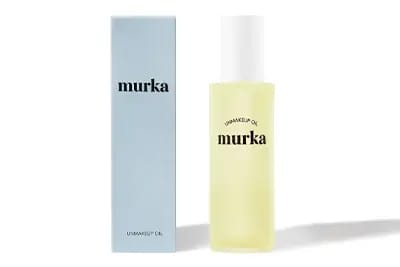
Sharpen photos online
Improve the sharpness of your product photos with one click. No registration, 100% in your browser - your photos never leave your device.
How to sharpen photos online - free AI tool in your browser

Sharpening photos online used to require Photoshop, Lightroom, or at least one of the heavyweight desktop editors. Our sharpener changes the rules - it runs directly in your browser, with nothing to install. Upload a photo, adjust the intensity slider (or switch on AI mode), download the result. The whole process takes seconds, and your files never touch an external server.
The tool was built at marszalstudio, where we have been photographing products for e-commerce since 2012. Sharpening is one of the last steps in our workflow - we apply it after retouching and color correction, right before export. We know from experience that a subtle sharpening pass can lift listing conversions because the customer sees product details more clearly. That is why we released the tool for free - so every seller can improve their photos without spending money on software.
Our online photo sharpener relies on two algorithms. Manual mode applies a classic Unsharp Mask - the same technique Photoshop has used for years. AI mode goes further: it analyzes the image structure, detects product edges, and enhances them selectively without touching the background or smooth surfaces. The result? Sharper details with no noise or halo artifacts along the edges.
If you are looking for professional packshot photography for your store, sharpening is just one piece of the puzzle. A well-photographed product on a white background will always produce better results after sharpening than a phone snapshot taken in poor light. The photographic base matters most - the tool will enhance details, but it cannot replace good lighting and a sharp lens.
Three steps to a sharper photo
- Upload your image - drag a file onto the page or click the upload area. Supported formats are JPEG, PNG, and WebP.
- Set the intensity - move the sharpening slider or enable AI mode, which selects the optimal parameters automatically. You see a live before-and-after preview as you adjust.
- Download the result - hit the download button. The sharpened image is saved in the original format at full resolution.
When is photo sharpening needed - products, marketplaces, social media

Online photo sharpening makes the biggest difference in three scenarios. First, preparing product images for marketplaces - Amazon, eBay, and Etsy automatically compress uploaded photos, which softens details. A light sharpening pass before upload compensates for that quality loss. Second, social-media posts - Instagram, Facebook, and Pinterest apply aggressive JPEG compression, and a pre-sharpened image holds up noticeably better after the double compression. Third, document scans and text photos - sharpening improves the readability of letters and edges.
When will sharpening not help? When the photo is heavily blurred due to camera shake (motion blur) or an autofocus miss. The tool amplifies details that already exist in the file - it cannot reconstruct information that was never captured. If the subject is completely out of focus, the only real fix is to re-shoot. Also check out our image resize tool - sharpening and resizing are often two steps of the same image-preparation workflow for online sales.
Photo sharpening works especially well on product images with fine details - jewelry, watches, electronics, cosmetics. The algorithm enhances edges and textures, so a buyer on Amazon or eBay can see the material grain, the logo on the packaging, and small construction elements. For marketplace sellers this is a real competitive edge - sharper photos build trust and reduce return rates.
Sharpening vs upscaling - what is the difference
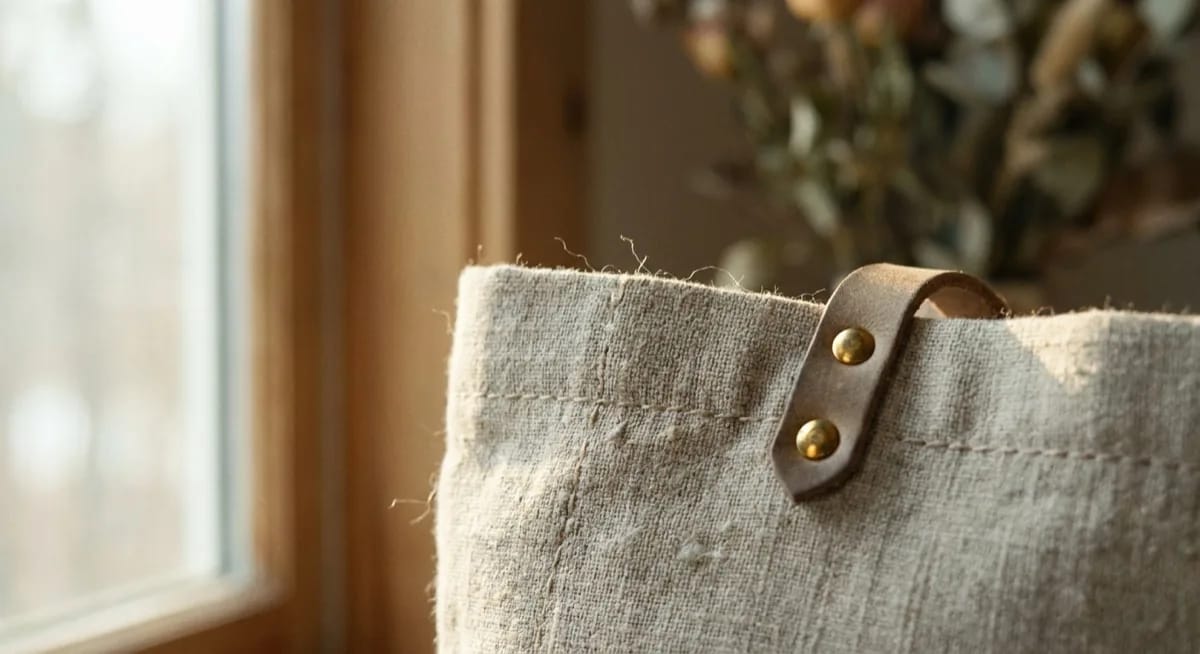
Sharpening and upscaling are two different operations that are easy to confuse. Sharpening increases the contrast along existing pixel edges - it does not change the image resolution, but makes details more visible. Upscaling (increasing resolution) adds new pixels that did not exist before - the algorithm "guesses" what they should look like based on surrounding context. Both processes are useful, but in different situations.
| Feature | Sharpening | Upscaling |
|---|---|---|
| Resolution | Unchanged | Increased (e.g. 2x, 4x) |
| What it does | Boosts edge contrast | Adds new pixels |
| File size | Similar to original | Significantly larger |
| Processing time | Seconds | Seconds to minutes |
| When to use | Image has enough resolution but looks "soft" | Image is too small for the target platform |
| Risk | Halos on edges at high intensity | Artifacts and loss of naturalness at large magnifications |
The optimal workflow is to upscale first (if the image needs higher resolution) and then apply a subtle sharpening pass at the end. In our tool you can sharpen the image after scaling it in any other program. If you are interested in AI photo editors, check out our overview of tools that combine upscaling and sharpening in a single step.
Sharpening photos on your phone - no app installation needed

Our sharpener works in any mobile browser - both iOS Safari and Android Chrome. You do not need to install an app from the store. Open the page, upload a photo from your gallery, move the slider, and download the result. The interface adapts automatically to smaller screens, and the before-and-after preview responds to touch gestures.
Sharpening photos online on your phone is especially handy when you need to prepare product images for social media on the go. Take a product photo with your phone, sharpen it in the browser, post it to Instagram - the whole process takes under a minute. The native photo editors on iOS and Android do offer sharpening options, but their algorithms are far simpler than a parameterized Unsharp Mask. Our AI mode delivers noticeably better results, particularly on product photos with fine textures.
Security and privacy

Photo sharpening in our tool happens entirely on the client side - inside your browser. Images are never uploaded to any server. The entire algorithm runs on the Canvas API and Web Workers built into the browser. You can verify this yourself: open DevTools (F12), switch to the Network tab, and watch for outgoing requests during sharpening - you will see zero.
This matters especially for product images before launch, prototypes, or photos covered by an NDA. Many free online tools upload your images to their servers "for processing" - we do not. Your files stay on your device from start to finish.
Frequently asked questions
How does photo sharpening work in this tool?
The tool applies an Unsharp Mask algorithm - the same technique Photoshop and Lightroom have used for years. It works by creating a blurred copy of the image, then amplifying the difference between the original and the copy (i.e. edges and details) by the chosen intensity. AI mode adds contrast and saturation correction on top - it is not artificial intelligence in the neural-network sense, but rather a set of image-processing algorithms that together produce a better result than sharpening alone.
How many photos can I sharpen at once?
The tool supports batch mode - you can drag and drop several or dozens of files at once. They will all be processed with the same intensity settings. Keep in mind that processing happens on your computer, so with large files (e.g. 30 images at 20 MB each) the speed depends on your CPU.
Sharpening did not help - the photo is still blurry. Why?
Sharpening amplifies details that already exist in the file. If the photo is blurred due to camera shake (motion blur) or an autofocus error, sharpening cannot recover the lost pixels - it will only emphasize the blur. In that case, re-shooting the product is the only real solution. However, a slightly soft image (e.g. after JPEG compression or resizing) can be improved significantly.
What intensity should I set for marketplace photos?
For product photos on marketplaces, the 30-60% range works well. At 30% the effect is subtle but natural. At 60% details are noticeably sharper, but bright halos may appear along edges. Above 70% halos are almost guaranteed. The best approach is to test on one image, compare in the before-and-after view, and only then apply the same setting to the rest of the batch.
Online photo sharpening is a quick way to improve your product images before publishing. If you need professional product photos that start with perfect sharpness, lighting, and color from the get-go, check out packshot photography services at marszalstudio. We have been photographing products for e-commerce since 2012, serving sellers on Amazon, eBay, and independent online stores.