Canva - a complete guide for e-commerce sellers.
It is one of the most popular graphic design tools in the world, used by millions of people from social media creators to online shop owners.
In 2026, the platform offers advanced AI features, hundreds of thousands of templates and an intuitive editor that requires no knowledge of Photoshop.
If you sell products online, run an Instagram or TikTok profile, or simply want to create attractive graphics without a design course - Canva is for you.
In this guide you will learn how to use Canva step by step, what the free version offers versus Canva Pro, what AI features were introduced in 2026, .

What is Canva and why should you know it in 2026?
Canva is a browser-based graphic editor available at canva.com, working on a drag-and-drop principle. Unlike Photoshop or Affinity Photo, it requires no installation, expensive licence or months of learning. All you need is an account (including a free one) and any device with a browser.
The platform was founded in 2012 in Australia and has grown consistently ever since.
Today Canva has over 170 million monthly users, more than 3 million templates, and is aggressively expanding into AI. In the UK, Canva's popularity is enormous - the keyword "Canva" is searched over a million times a month, making it one of the most sought-after graphic tools in the country.
What is Canva used for in practice? Primarily for:
- creating graphics for social media (Instagram, TikTok, Pinterest, Facebook)
- designing banners and e-commerce posts (eBay, Etsy, Amazon, online shops)
- making presentations and business materials
- editing and enhancing product photos - adding backgrounds, text, stickers
- creating marketing materials: flyers, posters, business cards
- generating AI graphics from text (Text to Image)
Canva's key advantage is speed. A professional product graphic that takes 30 minutes in Photoshop can be done in 5 minutes in Canva - thanks to ready-made templates and an intuitive interface. This is especially important for sellers on Etsy, Amazon or eBay who need dozens of graphics per day.
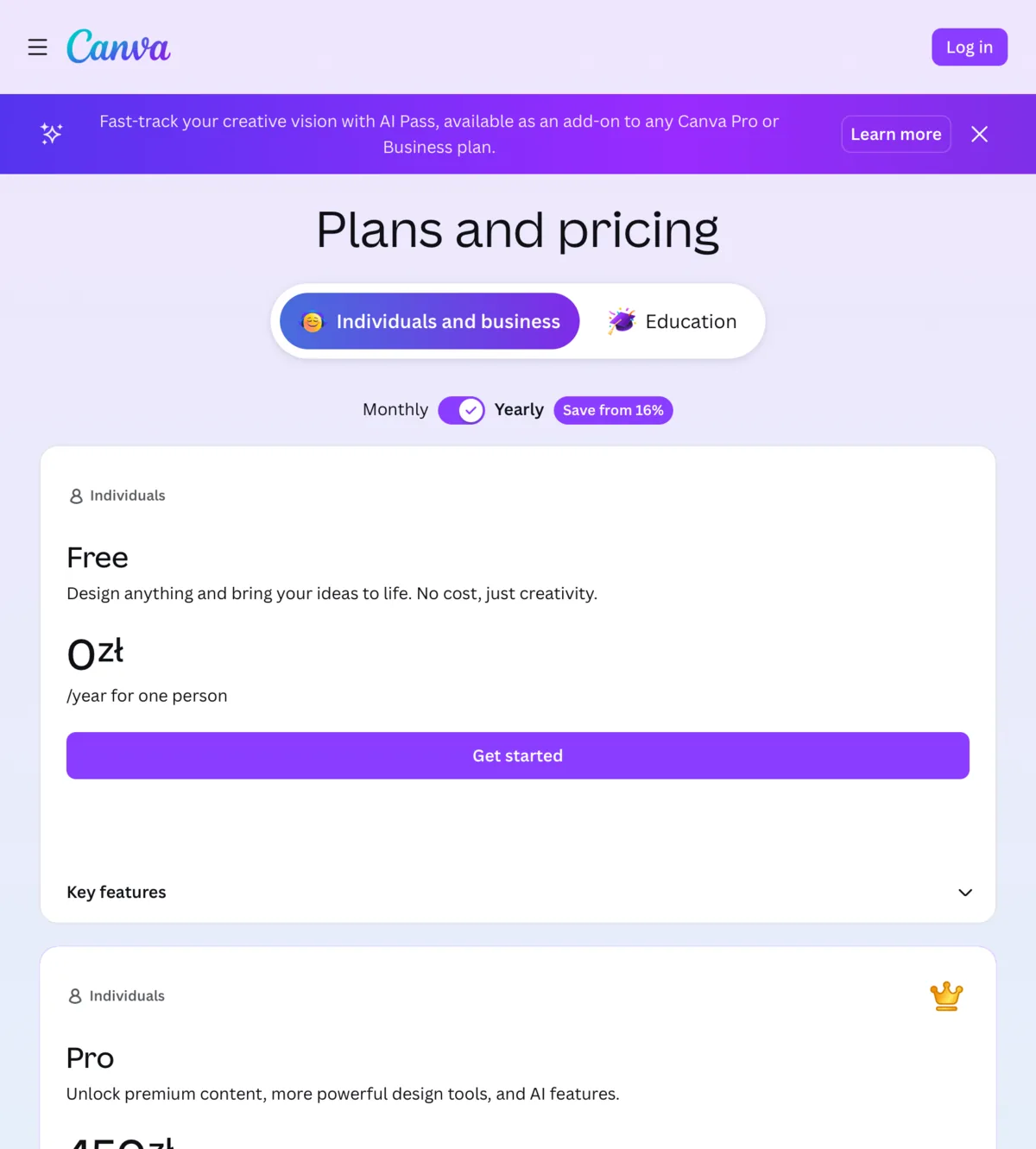
Canva free vs Canva Pro - which one to choose?
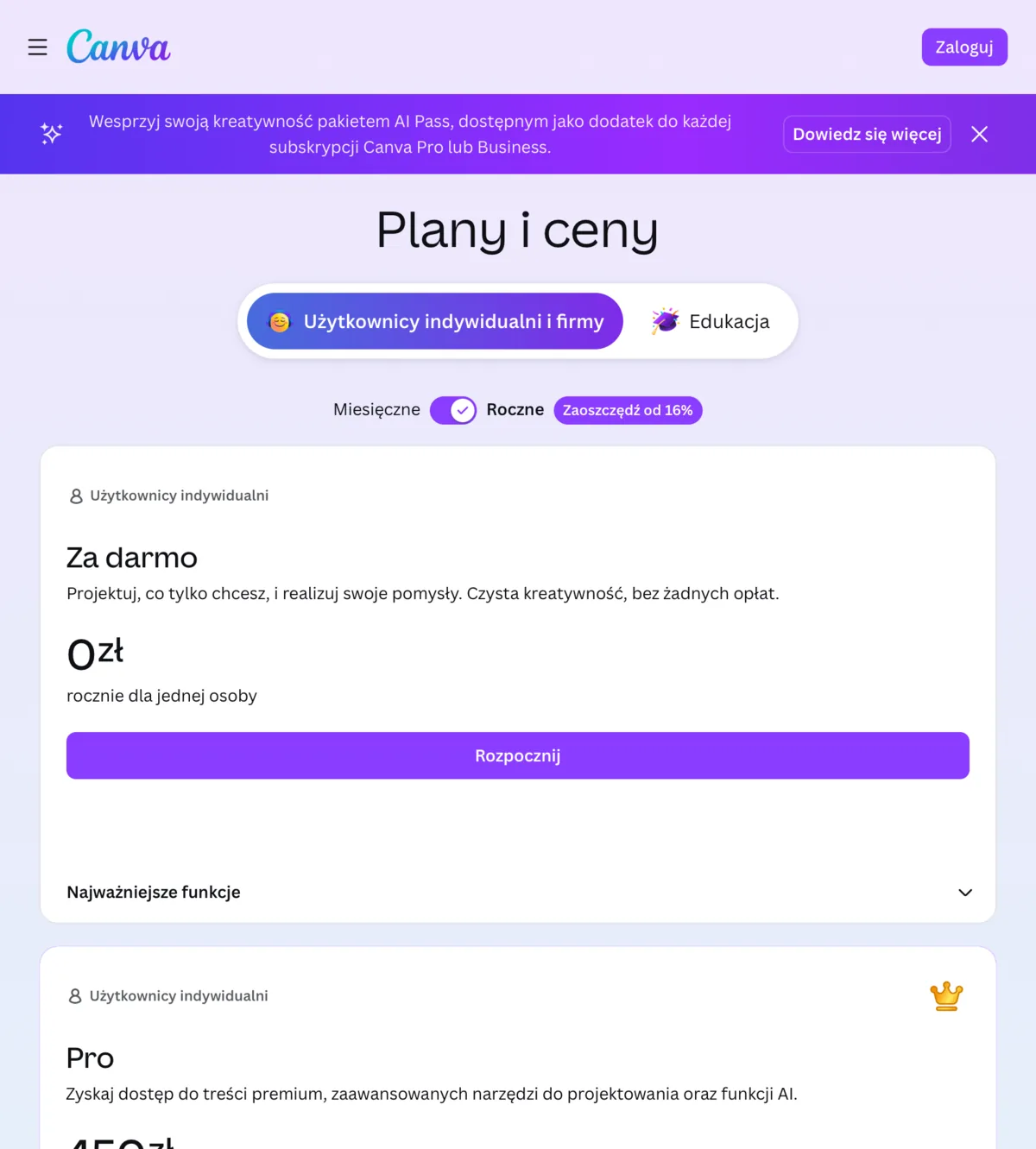
One of the most frequently asked questions is: does Canva free suffice, or is it worth paying for Canva Pro? The answer depends on what you use the tool for. Below is a detailed comparison of both plans.
| Feature | Canva Free | Canva Pro |
|---|---|---|
| Templates | 250,000+ | 610,000+ |
| Graphic elements | Basic (approx. 1 million) | All (100+ million) |
| Storage | 5 GB | 1 TB |
| Background Remover | Not available | Yes - 1 click |
| Magic Resize | Not available | Yes - automatic format change |
| Brand Kit (colours, fonts, logo) | 1 set | Unlimited sets |
| Scheduling (social media) | Not available | Yes |
| PDF export without watermark | Yes | Yes |
| Canva AI (Magic Write, Text to Image) | Limited (50 credits/month) | Unlimited |
| Price | Free | approx. £13/month or £110/year |
When is Canva Free enough?
If you create a few graphics per week, do not need bulk background removal, and do not manage a brand with a ready visual identity set - the free version is perfectly adequate. Many small shop owners on Etsy or eBay get on brilliantly without Pro.
When is Canva Pro worth buying?
If you run an e-commerce shop and create product graphics regularly, Magic Resize and Background Remover will pay for themselves within the first week of use. Pro is also worthwhile for agencies and freelancers serving multiple clients.
Worth knowing: Canva Pro is free for teachers and students through the Canva for Education programme - you just need to verify your institutional account. Non-profit organisations can also apply for free access.
Canva AI - new artificial intelligence features in 2026
In 2026, Canva is rapidly developing its AI ecosystem under the name "Magic Studio". This is a collection of artificial intelligence tools built directly into the editor. Below is a description of the most important features that could revolutionise the way you create product graphics.
Magic Eraser - removing unwanted elements
Magic Eraser lets you "paint over" any area of a photo, and Canva AI automatically fills it with context from the surrounding image.
Ideal for removing price tag strings, shadows on backgrounds, dust on products, or unwanted background elements.
Simply select the area with the brush and click "Erase". The result is surprisingly good on simple backgrounds, though on complex textures it may require a few attempts.
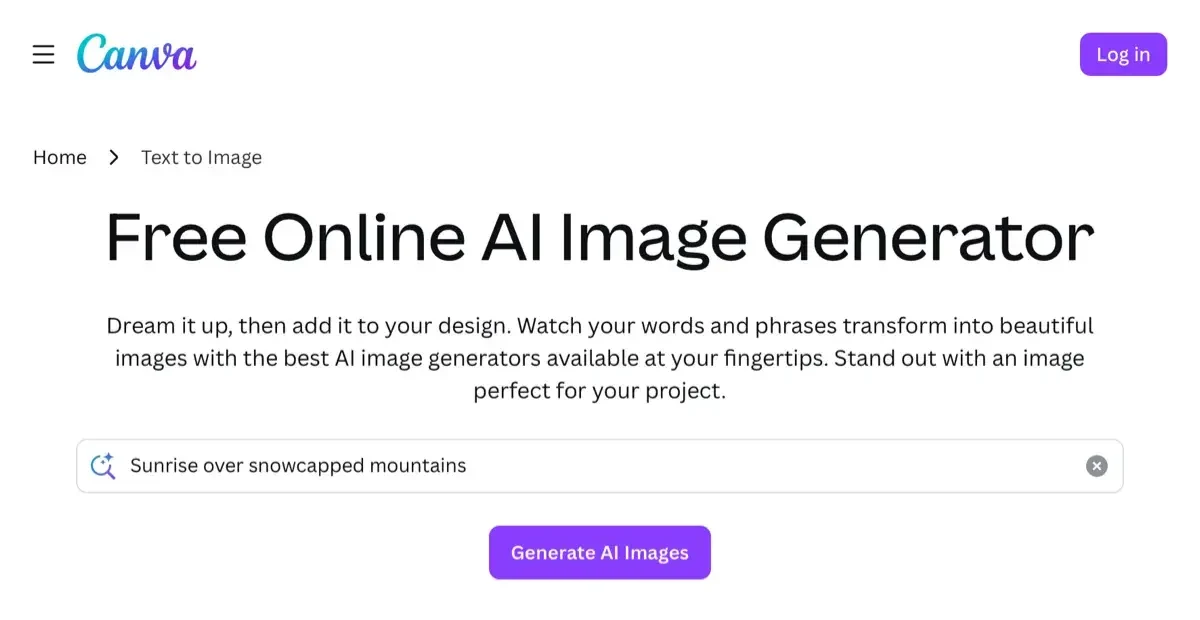
Text to Image - generating graphics from a description
Text to Image is an AI image generation feature based on a text description.
You type "white ceramic vase on a white background, studio lighting, product photography" and Canva generates several proposals.
The results are useful as backgrounds, textures or decorative elements - less often as a substitute for a professional product photo. Why? Because the AI does not know your specific product and cannot reproduce its unique details, material texture or true colour.
This is an important distinction: Canva AI is excellent at complementing and embellishing graphics, but the starting point should always be a professional product photo.
If the base photo is poor - blurry, poorly lit, with an untidy background - no AI will fix it. That is why it is worth investing in good photos at the photography session stage, and only then use AI tools to enhance and frame them graphically.
Magic Expand - extending the frame
Magic Expand (also known as "Outpainting") lets you extend a photo beyond its original edges.
If you have a square product photo but need a horizontal banner, Canva AI will "draw in" the surroundings.
It works well on plain backgrounds (white, grey) and products with a simple context. On complex styled shots the results can vary.
Magic Write - AI for text
Magic Write is an assistant for writing marketing copy.
It helps create product descriptions, banner headlines, slogans and CTAs.
Simply provide context ("write a short description for a stainless steel water bottle, target customer: athletes") and Magic Write will generate proposals. It is a useful tool for a first draft - the texts require editing and brand adaptation, but they save time.
Other AI features worth noting: Magic Animate (automatic project animation), Dream Lab (advanced image generation), AI Presentation Generator (ready presentations from a single sentence) and Background Generator (generating product backgrounds).
How to create a product photo in Canva - step by step
Canva is not a camera - it will not "take" a product photo for you. But it is an excellent tool for creating professional product graphics based on photos you already have.
Here is the full process from photo to finished e-commerce graphic.
Step 1: Choose the right format
Start by choosing the project size.
Click "Create a design" and select a format or enter your own.
The most commonly used product formats are: 1200x1200 px (square for Instagram, eBay), 1200x628 px (Facebook banner), 1080x1920 px (Stories, TikTok), 2560x1440 px (shop banner). If you use Canva Pro, you can later resize to other formats with a single click using Magic Resize.
Step 2: Upload your product photo
Click "Upload" and add a product photo from your device.
Remember: the quality of the final graphic is directly proportional to the quality of the base photo.
A blurry, dark or cluttered photo will give poor results even after AI processing. The best results come from photos taken in good lighting with a clean background (white, grey or solid colour). A professional session with marszalstudio delivers sharp, well-lit photos that look great in Canva straight away.
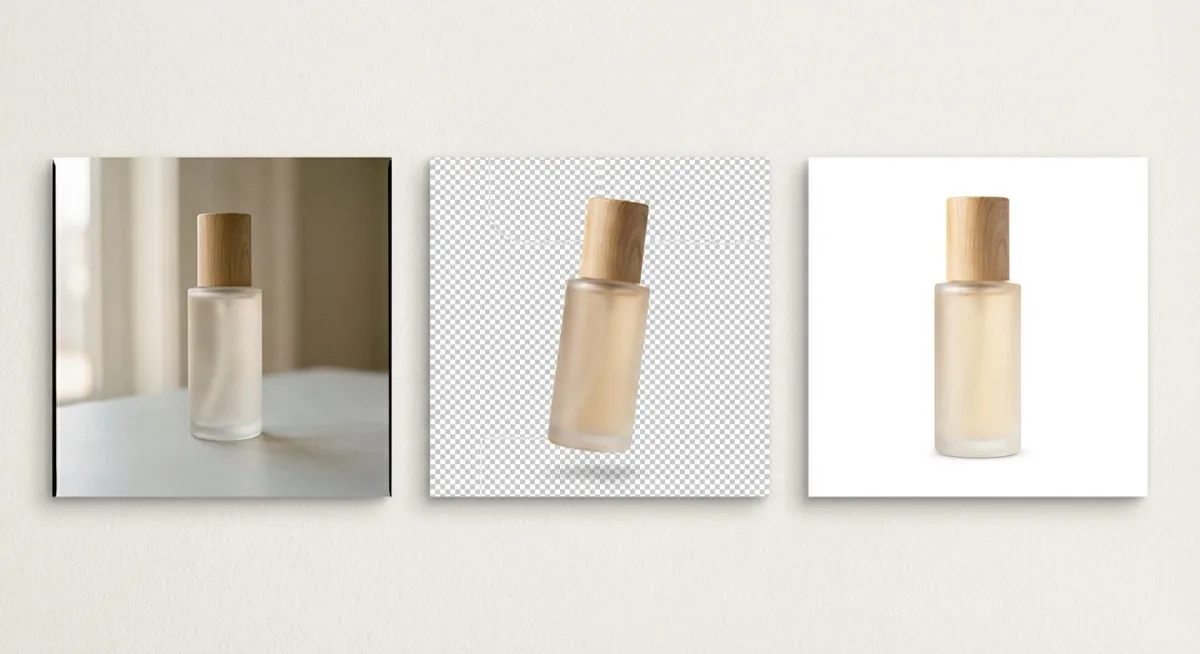
Step 3: Remove the background (Background Remover)
If you have Canva Pro: click the photo, select "Edit photo" and use Background Remover.
The tool automatically cuts the product out from the background.
Results are good for simple products with clear edges (bottles, electronics, footwear). On transparent objects, hair or products with a delicate structure the results may be inaccurate - in that case check the specialist tools described in our guide on removing backgrounds from photos.
Step 4: Add a new background or template
Once the product is cut out, you can place it on any background.
Canva offers a library of ready-made photographic backgrounds, gradients and textures.
You can also use the Background Generator (AI) or choose a ready e-commerce template from Canva's library. Product templates are categorised - search in the "E-commerce posts" or "Product ads" category.
Step 5: Add text, price and graphic elements
Click "Text" and add a headline, product description, price or promotion.
Canva offers hundreds of aesthetically matched font pairings - you do not need to be a typographer.
Also use the elements library: arrows, stickers, badges ("New", "Sale", "Bestseller"), frames and icons. Remember the readability rule - text should be clearly visible against the background and should not cover the key parts of the product.
Step 6: Check colours and brand consistency
If you have a Brand Kit (Canva Pro), the system automatically suggests your brand colours.
In the free version, save your colour codes (#hex) and apply them manually. Colour consistency across all product graphics is one of the most important elements of a professional brand image - a customer should recognise your posts before they even read the shop name.
Step 7: Export in the right format
Click "Share" - "Download".
For social media graphics choose PNG (better quality) or JPG (smaller file size).
For print - PDF or PNG at high resolution. For animated graphics - MP4 or GIF. Canva automatically exports at optimum settings for the chosen format.
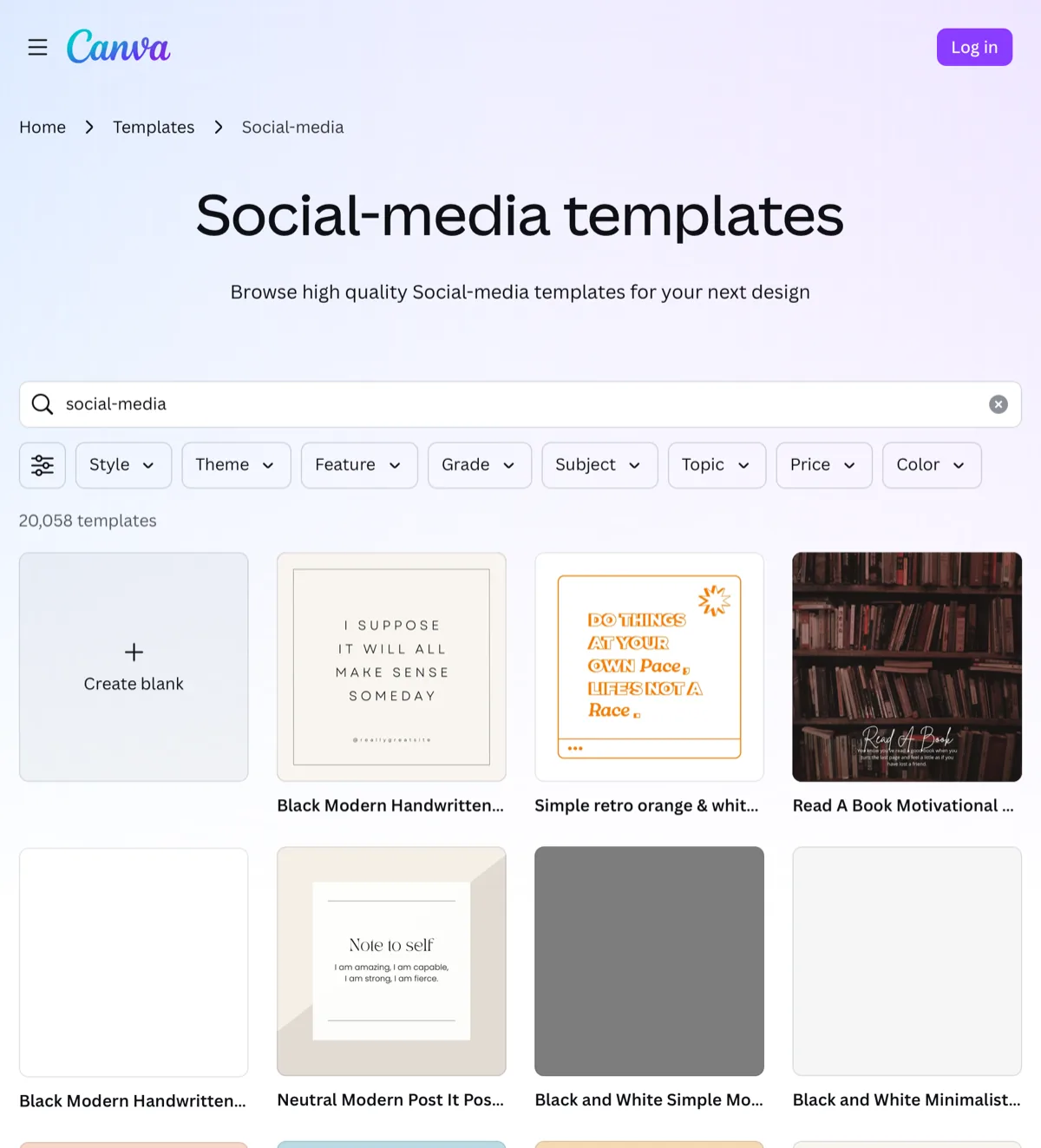
Canva for social media - Instagram, TikTok, Pinterest templates

Social media is undoubtedly Canva's strongest area.
The platform offers hundreds of templates tailored to every channel - with the right proportions, fonts and style. What matters for sellers: good product photos on social media generate traffic and conversions, and Canva helps frame them graphically.
Instagram: Canva has templates for square posts (1080x1080), landscape (1080x566) and portrait (1080x1350).
Stories and Reels - 1080x1920 px.
Important: on Instagram, aesthetics and feed consistency matter greatly. Canva lets you create series of templates with a single graphic motif, giving a "professional feed" effect without a designer.
TikTok: Vertical format 1080x1920 px, video duration up to 10 minutes. Canva offers a video editor with TikTok templates - you can combine product photos into a short showcase, add captions and music without any other software. For sellers on Etsy or eBay - a short TikTok showing a product can generate organic traffic.
Pinterest: Vertical format 2:3 (e.g. 1000x1500 px). Pinterest is one of the highest-converting platforms in e-commerce - users actively search for shopping inspiration. Canva has dedicated product pin templates with space for a title, price and brand logo.
Important note: Canva helps frame a photo graphically but cannot replace a good product photo.
On Instagram or Pinterest, a poor, blurry photo in a beautiful template will still look weak. For sellers who want to genuinely increase sales through social media, the first step is a good product photography session, and Canva is the next step - editing and distribution.
Canva vs Photoshop vs Photoroom - comparison
The question "Canva or Photoshop?" comes up frequently among e-commerce sellers and content creators. The answer is not straightforward - each tool has its strengths. Let us also add Photoroom, which specialises in AI product photography.
| Criterion | Canva | Adobe Photoshop | Photoroom |
|---|---|---|---|
| Price | Free / approx. £13/month (Pro) | approx. £25/month | Free / approx. £11/month (Pro) |
| Learning curve | Very low - intuitive | High - requires a course | Low - focused on products |
| Templates | 610,000+ (Pro) | None built-in | Several hundred (product-focused) |
| AI background removal | Yes (Pro) | Yes (Firefly AI) | Yes - best quality |
| Advanced editing | Basic | Professional (layers, masks) | Intermediate (product-focused) |
| AI generation | Yes (Magic Studio) | Yes (Firefly) | Yes (backgrounds, shadows, scenes) |
| Social media | Excellent integration | None | Limited |
| Best for | Marketing, social media, e-commerce | Professional designers, retouchers | E-commerce sellers, products |
Comparison summary: Canva wins for 80% of an online seller's needs - fast, no learning curve, runs in the browser and offers ready product templates.
Photoshop is the tool for professional designers when every pixel counts and you need control over every layer. Photoroom in 2026 is excellent for bulk background removal and generating AI product scenes - it is faster and more precise than Canva for that specific task. A good strategy: Photoroom for photo editing + Canva for creating the final marketing graphics.
It is also worth mentioning other AI photo editors that can complement your toolkit depending on your needs.
5 Canva tricks that will speed up your workflow
Canva is simple - but it has several non-obvious features that can double your productivity. Here are the tricks that are rarely mentioned at the start.
- Magic Resize (Canva Pro) - one design, all formats - Design a graphic once in square format, then with one click on "Resize" generate versions for Stories, Pinterest and your shop banner. Canva automatically scales and recomposes the design. You save hours when creating sets of campaign graphics.
- Bulk Create - mass-producing graphics from a spreadsheet - Go to "Apps" and find "Bulk Create". You can upload a CSV spreadsheet with data (e.g. product names, prices, codes) and Canva will automatically generate a series of graphics with the filled-in text. Perfect for sellers with a large product catalogue.
- Keyboard shortcuts - little-known but useful - T (add text), R (rectangle), C (circle), L (line), Ctrl+D (duplicate element), Ctrl+G (group), Ctrl+[ or ] (change layer order), Alt+drag (copy element). Once you master shortcuts, working becomes significantly faster than clicking through menus.
- Folders and custom templates - never start from scratch - Save your best designs as templates (right-click a design, "Save as template"). Next time you open the ready layout with your colours and fonts and simply swap the photos and text. For e-commerce shops that create promotional posts every week - a real game changer.
- Transparency and blending - professional effects without Photoshop - Click any element, choose the chessboard icon (transparency). You can reduce a layer's opacity, create overlays, and add semi-transparent text tiles on top of photos. The effect: text on product photos is readable without covering the product.
Bonus trick: instead of searching for the right element in the library, press Ctrl+F (Cmd+F on Mac) and type what you are looking for - for example "arrow", "star", "heart". Canva filters elements in real time.
Canva and professional product photography - how to combine them
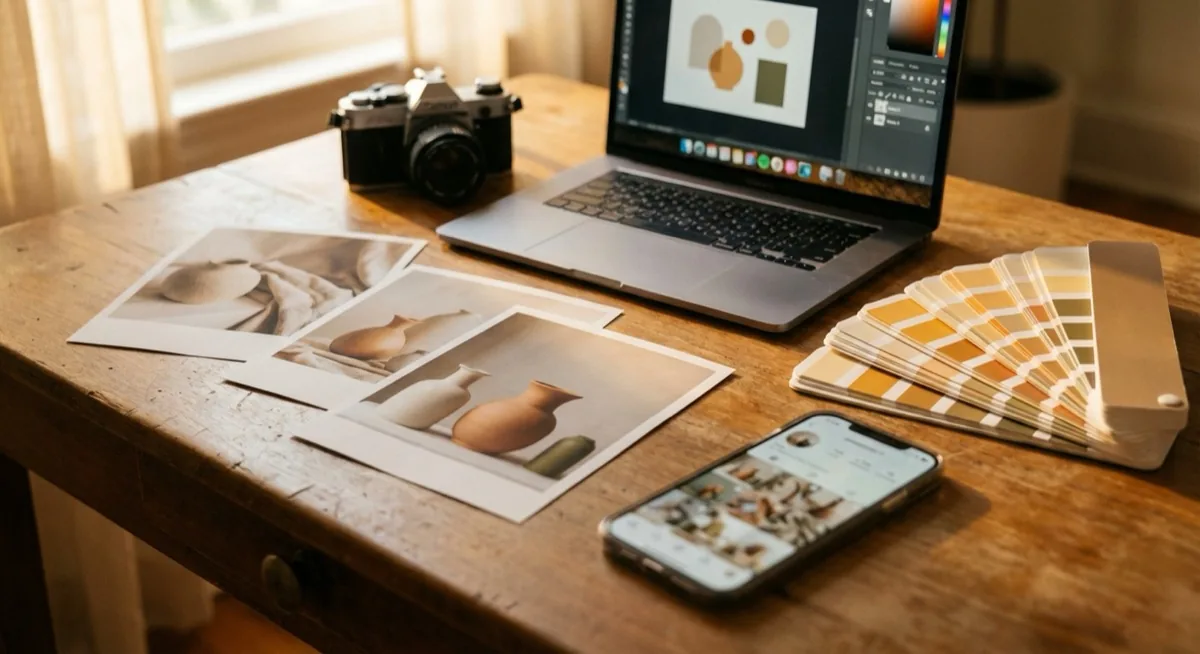
Canva is excellent - but it has one fundamental limitation: it works with the material you give it.
AI in Canva can remove a background, improve colours, generate a decorative background - but it cannot recreate the sharp details of a product, the true texture of a material, the authentic sheen of metal or the subtleties of a shape. These things are only visible in a professional photo.
Shop owners on Etsy, Amazon and eBay regularly learn this the hard way: generic AI backgrounds and beautiful Canva templates do not replace a good photo. Customers click on images that inspire trust - and that is only achieved with a sharp, well-lit, professional product shot.
The optimum workflow for an e-commerce seller in 2026 looks like this:
- Professional photography session (marszalstudio or a good self-shoot) - sharp, well-lit product on a clean background
- Optional bulk photo editing - background removal in Photoroom or a specialist editor
- Creating marketing graphics in Canva - templates, text, promotions, social media
- Optionally: generating additional AI scenes (Google Product Studio) for different sales contexts
Canva in this model is a powerful tool at the third stage - creating marketing materials.
But no AI tool can replace the quality of a photo from the first stage. marszalstudio specialises in e-commerce photography sessions - photos are ready to import into Canva and other tools immediately after the session, allowing you to cut the time from session to publication to a minimum.
FAQ - frequently asked questions about Canva
Yes, Canva offers a fully functional free version with no time limit. Canva free gives access to over 250,000 templates, a basic element library and 5 GB of storage. Canva Pro (paid, approx. £13/month) unlocks the full library, Background Remover, Magic Resize and unlimited AI. The free version is sufficient for most beginners.
Canva AI covers several tools: Magic Eraser (removing elements), Text to Image (generating images from a description), Magic Write (writing text), Magic Expand (extending the frame) and Dream Lab (advanced image generation). In the free version you have a limited number of AI credits (approx. 50/month). Canva Pro gives unlimited access to all Magic Studio AI features.
Canva Pro is worth it if you regularly create product or marketing graphics. The key advantages are: Background Remover (remove backgrounds with one click), Magic Resize (automatic format changes), full element and template library, Brand Kit (visual identity sets) and 1 TB of storage. For e-commerce sellers and social media creators, Pro pays for itself within the first week. Teachers and students can get Pro for free.
Product photos in Canva are created in a few steps: upload your product photo (ideally on a white background), use Background Remover to cut out the product, choose or generate a new background, add text and graphic elements, adjust colours to match your brand, and export as PNG or JPG. Remember: the quality of the final graphic depends on the quality of the input photo - Canva AI cannot fix a blurry or poorly lit image.
For most e-commerce sellers Canva is the better choice: it is free or cheaper, requires no learning, works in the browser and offers ready product templates. Photoshop is better if you need pixel-level precision retouching, advanced masks and effects - typically for professional designers and photo retouchers. For everyday production of graphics for eBay, Etsy or Instagram - Canva is sufficient in 90% of cases.
Summary - Canva as part of your toolkit
Canva in 2026 is a mature, powerful tool that can genuinely change the way you create product and marketing graphics. The intuitive interface, hundreds of thousands of templates, growing AI features and support for all social media platforms make it the first tool every online seller should reach for.
At the same time, Canva is not a magic solution to all visual problems.
AI enhances and embellishes - but it does not create quality from nothing.
A professional product photo is the foundation on which Canva can build whatever you want. A poor photo in a beautiful template is still a poor graphic.
If you want to be certain your products look professional from the very first shot - marszalstudio carries out e-commerce photography sessions with full studio lighting, delivering photos ready to work with in Canva, Photoroom and other tools. Get in touch with us to find out how good product photography translates into real sales results.